
Last Updated on March 4, 2026
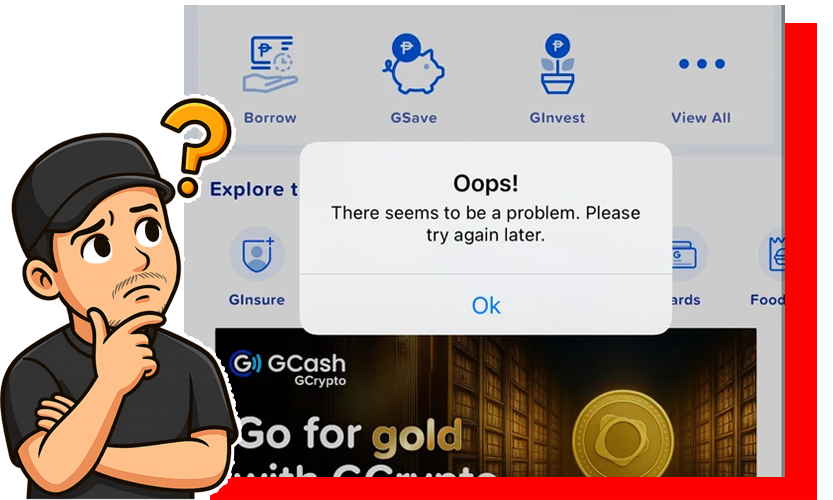
Encountering an error code when using GCash can instantly turn a simple transaction into a frustrating experience. For many users on Globe SIM cards, GCash Error Code 93 is a recurring culprit that halts their payments and digital activities. This specific error, often manifesting during critical transactions, typically points to underlying issues related to your network connectivity, the verification status of your GCash account, or temporary glitches within the GCash application itself.
If you’ve been grappling with this pesky error, rest assured you’re not alone. Thousands of Filipinos rely on GCash daily, and such hiccups are a common part of the digital payment landscape. Fortunately, understanding what GCash Error Code 93 signifies is the first crucial step towards a swift resolution. This comprehensive guide will not only help you diagnose the problem but also provide you with detailed, step-by-step solutions to overcome it, ensuring you can get back to enjoying seamless GCash transactions with your Globe SIM.
Contents
- 1 What Exactly is GCash Error Code 93?
- 2 Common Causes of GCash Error Code 93 on Globe SIM Cards: A Deeper Dive
- 3 Step-by-Step Guide to Resolving GCash Error Code 93
- 3.1 Solution 1: Check Your Internet Connection and Globe Signal
- 3.2 Solution 2: Restart the GCash App and Your Phone
- 3.3 Solution 3: Verify Your GCash Account Status
- 3.4 Solution 4: Clear GCash App Cache and Data
- 3.5 Solution 5: Update the GCash App and Your Phone OS
- 3.6 Solution 6: Check Your Globe SIM Card and Phone Hardware
- 3.7 Solution 7: Monitor GCash Social Media for Outages
- 4 Preventing Future Occurrences of GCash Error Code 93
- 5 The Importance of Keeping Your GCash Account Secure on Globe SIMs
- 6 FAQs About GCash Error Code 93
- 7 Conclusion
What Exactly is GCash Error Code 93?
While GCash provides various error codes for different scenarios, Error Code 93 specifically tends to surface for Globe SIM users, signaling a disruption in the transaction process. It’s not always tied to a single, obvious fault but rather a combination of factors preventing your GCash app from successfully communicating with its servers or completing a required security check. Think of it as a ‘general transaction failure’ warning that often has its roots in:
- Interrupted Data Flow: Your phone’s connection to Globe’s network or the internet is unstable.
- Account Mismatch/Incompleteness: Your GCash account’s data doesn’t perfectly align with what the system expects for that transaction.
- Software Conflicts: The GCash app itself, or your phone’s operating system, is experiencing a temporary bug.
Recognizing these core areas is vital for effective troubleshooting, helping you quickly pinpoint and resolve the underlying issue.
Common Causes of GCash Error Code 93 on Globe SIM Cards: A Deeper Dive
Let’s unpack the most prevalent reasons why you might be seeing GCash Error Code 93, providing more context for each:
1. Network Connectivity Issues
GCash, being an online financial service, heavily relies on a strong and stable internet connection. Even a momentary drop in signal or slow data speeds can interrupt a transaction. This is particularly relevant for Globe SIM users, as network performance can vary significantly by location and data plan.
- Weak Signal: You might be in an area with poor Globe network coverage.
- Limited Data: Your mobile data allocation might be exhausted or throttled.
- Network Congestion: High traffic on Globe’s network, especially during peak hours, can lead to slow connectivity.
- APN Settings: Incorrect or outdated Access Point Name (APN) settings on your Globe SIM can hinder proper internet access.
- Wi-Fi Interference: If you’re on Wi-Fi, the signal might be weak, or other devices on the network could be hogging bandwidth.
2. Account Verification Problems
GCash implements different verification levels (Basic, Partially Verified, Fully Verified) with varying transaction limits and functionalities. If your account isn’t fully verified, or if there’s a discrepancy in your submitted information, certain transactions might be blocked.
- Unverified Account: Some GCash services or transaction amounts require a fully verified account. If yours isn’t, or if it’s pending verification, you might hit this error.
- Outdated Information: Your registered personal details (name, address, ID) might not match your latest records, or your submitted ID might have expired.
- Security Flags: Suspicious activity detected by GCash’s fraud detection system might temporarily unverify or restrict your account, leading to the error.
3. App and Device Glitches
Software is prone to bugs. A temporary bug in the GCash app, an outdated version, or conflicts with your phone’s operating system can disrupt its normal function.
- Outdated App Version: Running an old version of the GCash app can lead to compatibility issues with updated GCash servers.
- Corrupted Cache/Data: Over time, the app’s cache or stored data can become corrupted, leading to unexpected errors.
- Phone OS Issues: Your phone’s operating system (Android or iOS) might have a pending update, a bug, or memory issues affecting app performance.
- Conflicting Apps: Other apps running in the background might interfere with GCash’s operations.
4. SIM Card or Phone Issues
Sometimes, the problem can be as fundamental as your Globe SIM card or the phone itself.
- Faulty SIM Card: A damaged or improperly seated Globe SIM card can lead to intermittent network connectivity, directly impacting GCash.
- Phone Hardware Problems: Less common, but a defective phone modem or network antenna could cause persistent connectivity issues.
5. GCash System Maintenance or Outage
Occasionally, the error might not be on your end at all. GCash undergoes scheduled maintenance or might experience unexpected system outages, which can temporarily disrupt services.
Step-by-Step Guide to Resolving GCash Error Code 93
Don’t let Error Code 93 deter you! Here’s a comprehensive approach to troubleshooting, starting with the simplest solutions:
Solution 1: Check Your Internet Connection and Globe Signal
A stable connection is paramount. Even a “full bar” signal doesn’t always guarantee reliable data flow.
- Toggle Mobile Data/Wi-Fi: If on Wi-Fi, switch to Globe mobile data, and vice-versa. This refreshes your connection.
- Restart Mobile Data: Turn off your mobile data for 30 seconds, then turn it back on.
- Perform a Speed Test: Use a reliable internet speed test app (like Speedtest by Ookla) to confirm you have adequate data speed.
- Check Globe Data Balance/Promos: Ensure you have an active data promo or sufficient load for internet usage. You can check via the GlobeOne app or by dialing *143#.
- Verify APN Settings (Android): For Android users, go to Settings > Mobile network > Access Point Names (APN). Ensure it’s set to the default Globe APN (e.g., internet.globe.com.ph or http.globe.com.ph). You can try resetting to default if unsure.
- Move to a Different Location: If you’re in an area known for poor signal, try moving to an open space or near a window.
Solution 2: Restart the GCash App and Your Phone
This simple step can clear temporary glitches and refresh the app’s connection to the server.
- Force Close GCash App:
- For Android: Go to your phone’s Settings > Apps > GCash > Force Stop. Then reopen the app.
- For iOS: Swipe up from the bottom (or double-press the Home button for older iPhones) to show recent apps. Find GCash and swipe it up/off the screen to close it completely. Then reopen.
- Restart Your Phone: Turn your smartphone completely off, wait for about 30 seconds, and then turn it back on. This clears your phone’s RAM and can resolve deeper system conflicts.
Solution 3: Verify Your GCash Account Status
An unverified or partially verified account could be the root cause, especially for certain transaction types or amounts.
- Check Verification Status:
- Open your GCash app.
- Tap on your Profile icon (usually top right or bottom right, depending on app version).
- Look for “Verify Now” or “Verification” status. If it’s not “Fully Verified,” you might need to proceed.
- Complete Verification (If Needed):
- Tap “Verify Now” or “Get Fully Verified.”
- Follow the on-screen instructions, which typically involve submitting a valid government ID (National ID, Passport, Driver’s License, UMID, etc.) and performing a selfie scan.
- Ensure your ID is clear, unexpired, and not a photocopy.
- Review Account Details: Even if verified, quickly review your personal information within the app’s profile settings to ensure accuracy.
Solution 4: Clear GCash App Cache and Data
Over time, app cache can become corrupted, leading to performance issues or errors. Clearing it can often resolve these.
- For Android Users (Recommended):
- Go to your phone’s Settings.
- Navigate to “Apps” or “Applications” > “GCash.”
- Tap on “Storage.”
- First, tap “Clear Cache.”
- If the error persists, you can try “Clear Data” (Warning: This will log you out of GCash and reset app settings, requiring you to log in again. Make sure you know your MPIN/password).
- For iOS Users: iOS does not have a direct “Clear Cache” option for individual apps like Android. Your best bet is to offload or reinstall the app.
- Offload App: Go to Settings > General > iPhone Storage > GCash > Offload App. This frees up storage but keeps documents and data. Reinstall from the same screen.
- Reinstall App: If offloading doesn’t work, delete the GCash app from your phone and then reinstall it from the App Store. This is a more thorough reset.
Solution 5: Update the GCash App and Your Phone OS
Outdated software is a common source of bugs and security vulnerabilities.
- Update GCash App:
- For Android: Open Google Play Store > Search for “GCash.” If an update is available, tap “Update.”
- For iOS: Open App Store > Tap your profile icon (top right) > Scroll down to see pending updates, or search for “GCash.” Tap “Update” if available.
It’s a good practice to enable automatic app updates to ensure you’re always running the latest version.
- Update Phone Operating System:
- For Android: Go to Settings > System > System update (or Software update).
- For iOS: Go to Settings > General > Software Update.
Keeping your phone’s OS up-to-date ensures optimal compatibility and security for all apps, including GCash.
Solution 6: Check Your Globe SIM Card and Phone Hardware
Sometimes, the issue is more fundamental.
- Reinsert SIM Card: Turn off your phone, carefully remove your Globe SIM card, wipe it gently with a clean cloth, and reinsert it correctly. This can re-establish a stable connection with the network.
- Test SIM in Another Phone: If possible, insert your Globe SIM into another working phone and try using GCash there. If it works, your primary phone might have a hardware issue.
- Test Another Globe SIM in Your Phone: Conversely, if you have access to another Globe SIM, try it in your phone. If GCash works fine, your original SIM might be faulty and may need replacement at a Globe store.
Solution 7: Monitor GCash Social Media for Outages
Before panicking, quickly check if GCash is experiencing a widespread issue.
- Visit the official GCash Facebook or Twitter pages. They usually post announcements about scheduled maintenance or unexpected service interruptions. If there’s an outage, the best solution is simply to wait.
Preventing Future Occurrences of GCash Error Code 93
Proactive steps can significantly reduce the chances of encountering this error again:
- Regularly Update GCash and OS: Set your apps and phone to update automatically whenever possible.
- Maintain a Reliable Internet Connection: Use strong Wi-Fi or ensure you have sufficient and stable mobile data when performing critical transactions. Avoid making payments in areas with known poor signal.
- Keep Your GCash Account Fully Verified: Ensure all your verification documents are up-to-date and your account is fully verified to unlock all features and avoid transaction limits.
- Monitor Globe Notifications: Pay attention to SMS or in-app notifications from Globe regarding network maintenance, advisories, or any issues that could affect your service.
- Regularly Clear Cache (Android): Make it a habit to clear your GCash app’s cache every few weeks.
- Avoid Public Wi-Fi for Sensitive Transactions: While convenient, public Wi-Fi can be less secure and less stable. Opt for your mobile data or a trusted private network for GCash transactions.
- Don’t Force Close Apps Excessively: While sometimes necessary, constantly force-closing apps can sometimes lead to instability.
The Importance of Keeping Your GCash Account Secure on Globe SIMs
Beyond troubleshooting errors, maintaining the security of your GCash account is paramount, especially as your Globe SIM is intrinsically linked to it for OTPs and notifications.
- Protect Your MPIN: Never share your MPIN (Mobile Personal Identification Number) with anyone. It’s your primary security key.
- Safeguard Your OTPs: One-Time Passwords (OTPs) sent to your Globe SIM are critical for authorizing transactions. Never share them with anyone, even if they claim to be from GCash or Globe support. GCash will never ask for your OTP.
- Enable Two-Factor Authentication (2FA): If available for any linked services, enable 2FA for an extra layer of security.
- Regularly Monitor Transaction History: Frequently check your GCash transaction history for any unauthorized or suspicious activity. Report anything unusual immediately to GCash.
- Be Wary of Phishing Attempts: Be suspicious of unsolicited texts or calls claiming to be from GCash or Globe asking for your personal details, MPIN, or OTP. Always verify official communication channels.
- Secure Your Globe SIM: Ensure your Globe SIM is not easily accessible to others. In case of loss or theft, immediately report it to Globe and GCash to block your SIM and secure your account.
FAQs About GCash Error Code 93
-
Is GCash Error Code 93 exclusive to Globe SIM cards?
- While the reported instances of Error Code 93 are predominantly associated with Globe SIM users, the underlying causes (connectivity, verification, app glitches) can affect any GCash user regardless of their network. However, network-specific issues would naturally be more frequent for users of that particular network.
-
How do I know if my GCash account is fully verified?
- You can check your verification status directly in the GCash app. Go to your Profile (usually at the bottom right) and look for a “Verify Now” or “Verification” section. It will indicate if your account is Basic, Partially Verified, or Fully Verified. Fully Verified accounts have higher limits and access to more features.
-
What should I do if my Globe signal is consistently weak?
- If your Globe signal is a persistent problem, try moving to an area with better coverage. You can also report signal issues to Globe’s customer service via their hotline (211 from Globe mobile) or the GlobeOne app. Consider using Wi-Fi for GCash transactions when your mobile data signal is unreliable.
-
Will clearing GCash app data delete my balance?
- No, clearing GCash app data (on Android) or reinstalling the app (on iOS) will NOT delete your GCash balance or transaction history. It only clears local files, settings, and logs you out of the app. Your funds and account information are stored securely on GCash’s servers and will be accessible once you log back in.
-
How long does GCash account verification take?
- Typically, if all documents are clear and correctly submitted, GCash account verification can be processed within minutes to a few hours. In some cases, it might take up to 24-48 hours. You will receive an SMS or in-app notification once your account is fully verified.
Conclusion
Navigating digital payment errors can be daunting, but understanding the specifics of issues like GCash Error Code 93 empowers you to take control. By diligently checking your Globe network connection, ensuring your GCash account is fully verified, maintaining an updated app, and being mindful of your device’s health, you can swiftly resolve most instances of this frustrating error. Remember that security is a shared responsibility; combining these troubleshooting tips with robust security practices will ensure your GCash experience on your Globe SIM remains smooth, convenient, and most importantly, secure. Keep transacting with confidence!
